Hop Hop Hop AI Photo to Video: Turn Two Photos into the Trend
 Hop Hop Hop AI Team
How hop hop hop AI photo to video works: which photos to use, one photo of both vs two photos, Standard vs HD, how long it takes, what happens to your photos, and how to get the video onto your phone.
Make your hop hop hop video
Puppet master first
Hops first
Best results: one clear, front-facing subject per photo, waist-up or full body, good light. No sunglasses or heavy filters.
You'll get a 9-second silent video — add the original TikTok sound when you post.
You'll sign in first — your photos stay selected.
You want to join the hop hop hop trend, but there's no video of the two of you doing it, only photos. That's exactly what hop hop hop AI photo to video is for. You give Hop Hop Hop AI still photos, and it turns them into a ~9-second vertical video of the puppet-and-swap routine. This guide explains what "photo to video" means here, what happens to your photos, and how to pick photos that give a good result.
What "photo to video" means here
It doesn't animate your photo with a gentle zoom or a slideshow effect. The AI uses your photos to understand who is in the video: faces, hair, clothes, body shape, or your pet's breed and fur. Then it creates a new video of those two subjects doing the trend:
- One subject stands close to the camera and "pulls strings" over the other's head.
- The other hops and flails in the background like a puppet.
- Around the middle, they swap roles.
The result is a 9:16 vertical clip of about 9 seconds, with no watermark and no audio. It's silent on purpose, so you can add the trend sound inside TikTok ("Add sound" → search "venadeaakira" → pick «Её парень»). See Hop Hop Hop Song for details.
Here's a real example made from one photo of both people:
Input photos
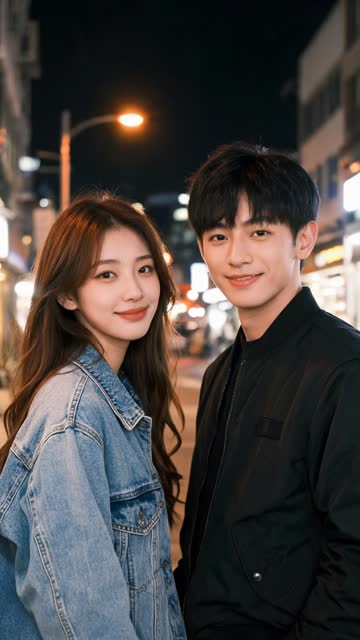
AI video · Couple · one photo of both
One photo of both, or two photos?
You can do either.
One photo of both of you is the easiest option if you already have a good couple or friends photo. It works best when:
- Both people are clearly visible and not overlapping much.
- Both faces are in focus and well lit.
- There are no other people in the shot.
Two photos, one subject each gives you more control, and it's the only option when you've never been photographed together. It's the natural choice for:
- Long-distance friends, partners or family.
- A person and a pet, since getting both in one sharp photo is hard.
- Two pets.
Here's an example made from two photos, one of a girl and one of her corgi:
Input photos
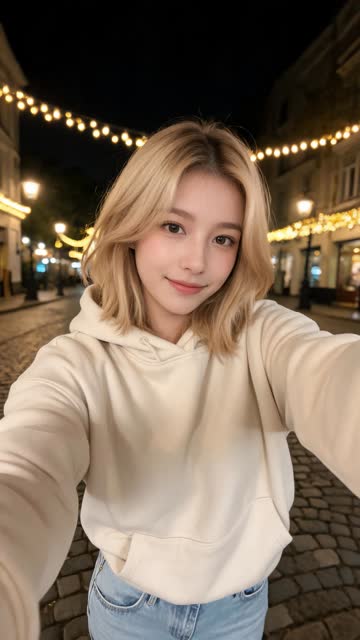
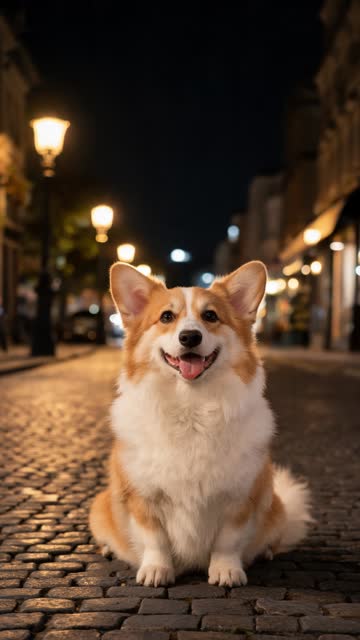
AI video · Girl + corgi · two photos
Photo checklist
The photos you upload matter more than any other setting. A few minutes picking good ones saves you from re-running a video.
Do:
- Use a sharp, recent photo. A normal phone photo is ideal.
- Show the face clearly, ideally looking toward the camera.
- Use good light. Daylight or bright indoor light works best.
- Go waist-up or full body. The subject hops, so the AI needs to see the body. Full body is best.
- Keep the background simple so the subject stands out.
- For pets, show the whole animal, including legs, tail and eyes.
Don't:
- Don't use group photos with extra people. Crop them out or choose another photo.
- Don't use sunglasses, masks, or heavy filters. Beauty filters and cartoon effects confuse the result.
- Don't use dark, grainy or backlit photos.
- Don't use tiny or heavily cropped images, such as screenshots of a profile picture.
- Don't upload photos of people who haven't agreed to be in the video, of minors without a guardian's consent, or of celebrities.
What happens to your photos
It's a fair question to ask before uploading anything.
- Your photos are used to generate your video.
- They're deleted automatically after 30 days.
- Your finished videos stay in My Videos for 90 days.
- You can delete any video and its photos at any time from My Videos. You don't have to wait.
Standard vs HD
| Quality | Resolution | Credits |
|---|---|---|
| Standard | 480p | 100 |
| HD | 720p | 180 |
Standard looks fine on a phone and is the cheaper way to try the trend. HD is sharper and holds up better after TikTok's compression. If you're happy to spend a little more on a video you plan to keep, pick HD.
Hop Hop Hop AI uses credit packs, not a subscription. 100 credits cost $9.90, which covers one Standard video, and bigger packs bring the cost down to about $5 per video. Credits never expire. There's no free trial, but if a render fails, your credits come back automatically, and unused credits can be refunded within 7 days. See pricing for every pack.
How long it takes
A video usually takes about 2–3 minutes. You don't have to watch the progress bar. Close the page if you like, and we'll email you when it's ready. The video will be waiting in My Videos.
Getting the video onto your phone
TikTok, Reels and Shorts all live on your phone, so that's where the video needs to end up.
Made it on your phone? Open My Videos, tap download, and save it to your camera roll. On iPhone, if it opens in a player, tap Share → Save Video. On Android, it lands in Downloads.
Made it on a computer? Two QR codes help here:
- Before generating: if your photos are on your phone, scan the QR code in the generator, pick the photos on your phone, and they show up on your computer.
- After generating: scan the QR code next to your finished video, and it opens on your phone, ready to save.
Then post it and add the sound in TikTok. Step-by-step posting instructions are in How to Make a Hop Hop Hop AI Dance Video from Two Photos.
Quick recap
- Photo to video here means the AI uses your photos to recreate both subjects doing the hop hop hop puppet swap.
- Use one clear photo of both or two photos, one subject each.
- Pick sharp, well-lit, full-body photos with no filters or extra people.
- Standard (480p, 100 credits) or HD (720p, 180 credits).
- About 2–3 minutes, emailed when ready, kept for 90 days. Photos are deleted after 30 days.
New to the trend? Read What Is the Hop Hop Hop Trend? Ready? Use the generator above and turn your photos into the trend.
Hop Hop Hop AI is fan-made and isn't affiliated with TikTok.