How to Make a Hop Hop Hop AI Dance Video from Two Photos
 Hop Hop Hop AI Team
A step-by-step guide to making a hop hop hop AI dance video: picking the right photos, choosing Standard or HD, downloading to iPhone or Android, and posting to TikTok with the trending sound.
Make your hop hop hop video
Puppet master first
Hops first
Best results: one clear, front-facing subject per photo, waist-up or full body, good light. No sunglasses or heavy filters.
You'll get a 9-second silent video — add the original TikTok sound when you post.
You'll sign in first — your photos stay selected.
You don't need a filming partner, a cobblestone street, or a pet that follows directions to join the trend. With Hop Hop Hop AI Dance, you upload two photos and get a ready-to-post hop hop hop AI dance video: a ~9-second vertical clip where one of you puppets the other on invisible strings, then you swap. This guide walks through every step, from choosing photos to posting on TikTok.
New to the trend? Start with What Is the Hop Hop Hop Trend?
What you get from a hop hop hop AI dance video
- A ~9-second, 9:16 vertical video that follows the puppet-and-swap format of the trend.
- No watermark. Download it and post it anywhere.
- No audio. The video is silent on purpose, so you can add the trending hop hop hop sound inside TikTok (more on that below).
Here's a real example, made from two photos: one of a girl and one of her corgi.
Input photos
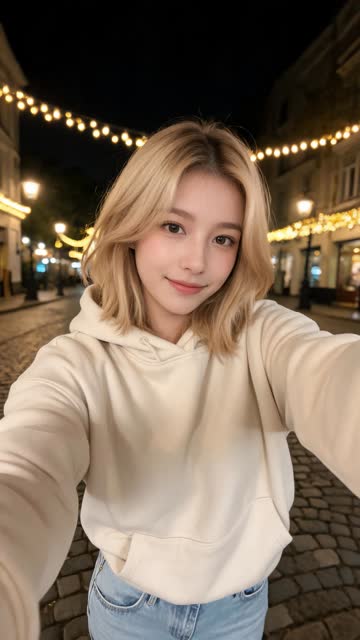
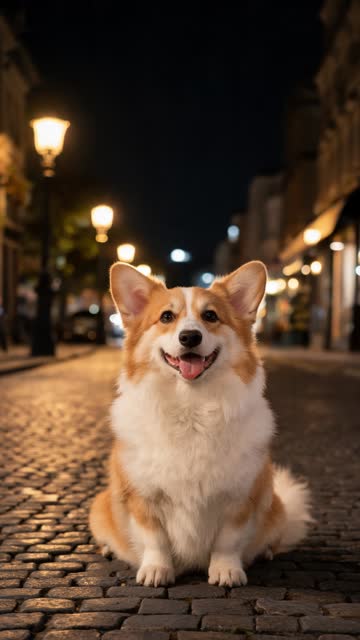
AI video · Girl + corgi · two photos
Want to see the whole thing with the sound? Here are both examples in a 20-second Short:
Watch it in 20 seconds
Two real examples made on Hop Hop Hop AI, with the trend's sound. More on our YouTube channel.
Demo videos include the TikTok trend sound for preview. Your downloaded AI-generated video is silent, so you can add the official sound in TikTok.
Watch more on YouTube →Step 1: Choose the right photos
Photo choice matters more than anything else. Good input gives a much better result.
You can upload two photos (one subject in each) or one photo with both subjects in it.
Photo tips for people:
- One subject per photo. Crop out friends, strangers and anyone else in the background.
- Face clearly visible. Looking toward the camera works best.
- Well lit. Daylight or bright indoor light. Avoid dark, grainy or backlit shots.
- Waist-up or full body. Full body gives the AI the most to work with for the hopping.
- No sunglasses, masks or heavy filters. Beauty filters, cartoon effects and strong color grading can confuse the result.
- Sharp, not blurry. A recent phone photo is ideal.
Photo tips for pets:
- Whole body visible, including legs and tail.
- Clear view of the face, not turned away or hidden.
- Simple background so the pet stands out.
Permission matters. Only upload photos you own or have permission to use, and make sure the people in them agree to be in the video. Don't upload photos of minors without a guardian's consent, or photos of celebrities and public figures. See our Terms of Service for the full rules.
Step 2: Upload your photos
Go to the home page, sign in, and upload your photos in the generator. Choose whether each subject is a person or a pet.
On a computer but your photos are on your phone? Scan the QR code shown in the generator with your phone camera, pick the photos on your phone, and they appear on your computer. No emailing photos to yourself.
Check the previews before you continue. If a face is cut off or the photo looks dark, swap it for a better one now. It's faster than re-running a video later.
Step 3: Pick Standard or HD
| Quality | Resolution | Credits |
|---|---|---|
| Standard | 480p | 100 |
| HD | 720p | 180 |
Standard looks fine on a phone screen and is the cheaper way to try the trend. HD is sharper and better if you want the clip to hold up on bigger screens or after TikTok's compression.
Hop Hop Hop AI is paid only, with no free trial. You buy a credit pack once and use it whenever you like. Credits never expire, and larger packs cost less per video. The smallest pack is 100 credits for $9.90, which covers one Standard video. See pricing for every pack.
Step 4: Generate and wait (about 2–3 minutes)
Hit generate. A video usually takes about 2–3 minutes.
You don't have to keep the page open. Close the tab, and we'll email you when your video is ready. If a generation fails for any reason, your credits are refunded automatically.
Step 5: Download your video
Open My Videos to see all your finished videos, then tap download. Videos stay there for 90 days, and you can delete any video and its photos whenever you like.
Made it on a computer? Use send to phone: scan the QR code next to your video with your phone camera, and the video opens on your phone, ready to save. That's the quickest way to get it into TikTok.
On iPhone:
- Tap download. Safari opens the video or shows a download prompt.
- If the video opens in a player, tap the Share button and choose Save Video.
- If it downloaded to Files, open the Files app, go to Downloads, open the video, tap Share, then Save Video.
- The video now shows up in Photos, ready for TikTok.
On Android:
- Tap download. Chrome saves the video to your Downloads folder.
- Most gallery apps (Google Photos, Samsung Gallery) show it automatically. If not, open Files, find the video in Downloads, and share or move it into your gallery.
Step 6: Post to TikTok with the hop hop hop sound
Because the video is silent, you add the sound in TikTok. On videos the trend sound shows as "original sound – venadeaakira"; in TikTok's Add sound search it's listed as «Её парень».
- In TikTok, tap +, then Upload, and choose your hop hop hop AI video.
- In the editor, tap Add sound.
- Search "venadeaakira" and pick «Её парень» — the 0:11 sound with 100K+ videos. Alternatively, tap the sound on any hop hop hop video first, add it to Favorites, and choose it from there.
- Trim the sound so the beat lines up with the swap in the middle of the clip.
- Write your caption and post.
Please don't download or rip the audio and bake it into your file. Use TikTok's in-app sound so your post links to the trend's sound page.
There are more details, including Reels and Shorts, in Hop Hop Hop Song: How to Find the TikTok Sound.
Caption and hashtag tips
- Keep the caption short. The video does the work. Something like "who's really in charge?" or a nod to the person you're hopping with is plenty.
- Use the trend hashtags. #hophophop and #dancetrend are what remakes commonly use.
- Tag your partner so they can share it too.
- Be upfront that it's AI-made. Use TikTok's AI-generated content label if the app asks or offers it. It's honest, and platforms increasingly expect it.
Troubleshooting
The face doesn't look like me. Use a sharper, well-lit photo with your face clearly visible and no filters or sunglasses. A straight-on photo usually works best.
Parts of the body look strange. AI video isn't perfect, and arms, hands and legs are the hardest parts. A full-body or waist-up photo with nothing blocking the body helps. If the result is clearly broken, contact support with the video ID. See our Refund Policy.
My pet looks distorted. Use a photo that shows the whole body against a simple background. Fluffy or dark-coated pets do better in bright light.
The video is taking longer than expected. Busy periods can take a bit longer. You can close the page; the email will arrive when it's done, and the video will appear in My Videos.
The generation failed. Your credits are refunded automatically. Try again, ideally with clearer photos.
I can't find the downloaded video on my phone. On iPhone, check the Files app under Downloads, then use Share → Save Video. On Android, check the Downloads folder in the Files app.
Make yours now
Two photos, a couple of minutes, and you're part of the trend. Create your hop hop hop AI dance video, then grab the sound in TikTok and post it.